微信小程序导出文件到本地,或直接分享到会话
首先有这样一个自己写的云函数,可以生成Excel,然后返回一个下载链接
1
2
3
4
5
6
7
| wx.cloud.callFunction({
name: "exportExcel",
data: {
startTime:this.data.starttime,
endTime:this.data.endtime
}
})
|
后面写一个then
1
2
3
4
5
6
7
8
9
| wx.cloud.callFunction({
name: "exportExcel",
data: {
startTime:this.data.starttime,
endTime:this.data.endtime
}
}).then(res => {
concole.log('云函数返回结果' + res)
})
|

返回结果如上
在then中的res.result.fileID就是文件在云存储中的fileID,如果用的不是微信的云存储那么不需要这一步,直接下载文件然后保存到临时路径即可(这个这里不讲,只讲使用微信云存储的情况)
然后有了这个fileID之后,使用wx.cloud.downloadFile直接下载这个文件
1
2
3
4
5
6
| wx.cloud.downloadFile({
fileID: fileID
success: downloadRes => {
console.log('下载成功,临时文件路径:', downloadRes.tempFilePath)
}
})
|
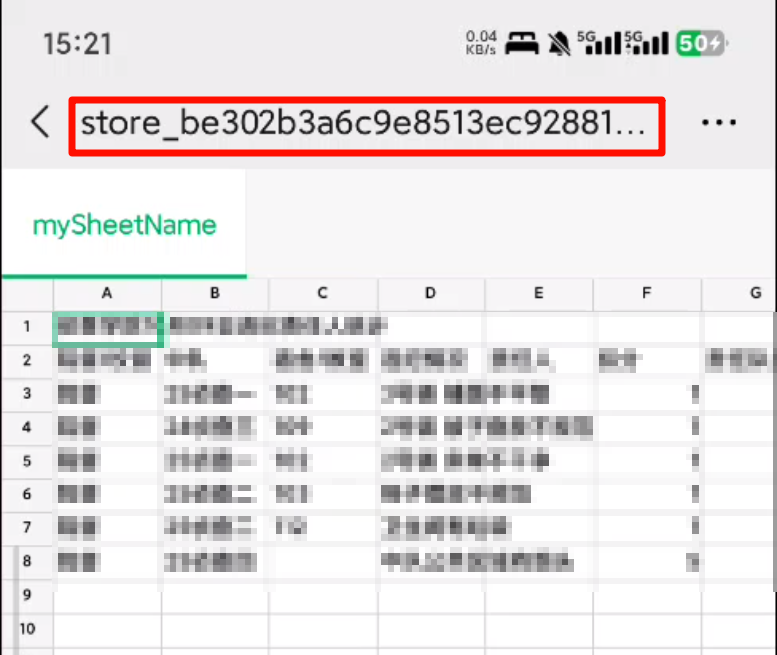
在手机上,保存的文件会生成一个随机文件名,格式为storage_abcdefg123456.xxx
这样会导致保存的文件不是原文件名,那么就先从fileID中提取文件名
1
2
3
4
5
6
7
| let fileName = '违纪信息.xlsx';
if (fileID.includes('/')) {
const extracted = fileID.split('/').pop();
if (extracted) {
fileName = decodeURIComponent(extracted);
}
}
|
然后使用文件系统管理器复制文件到指定路径
1
2
3
4
5
6
7
8
9
10
11
12
13
14
15
16
17
18
19
20
21
22
23
24
25
26
27
28
29
30
31
32
33
34
35
36
| const fileManager = wx.getFileSystemManager();
const destPath = `${wx.env.USER_DATA_PATH}/${fileName}`;
fileManager.copyFile({
srcPath: downloadRes.tempFilePath,
destPath: destPath,
success: () => {
console.log('复制文件成功,文件路径:', destPath);
wx.hideLoading();
wx.openDocument({
filePath: destPath,
fileType: 'xlsx',
showMenu: true,
success: function () {
console.log('打开文档成功');
},
fail: function (err) {
console.error('打开文档失败:', err);
wx.showToast({
title: '打开文件失败',
icon: 'none'
});
}
});
},
fail: (err) => {
console.error('保存文件失败:', err);
wx.hideLoading();
wx.showToast({
title: '保存文件失败',
icon: 'none'
});
}
});
|
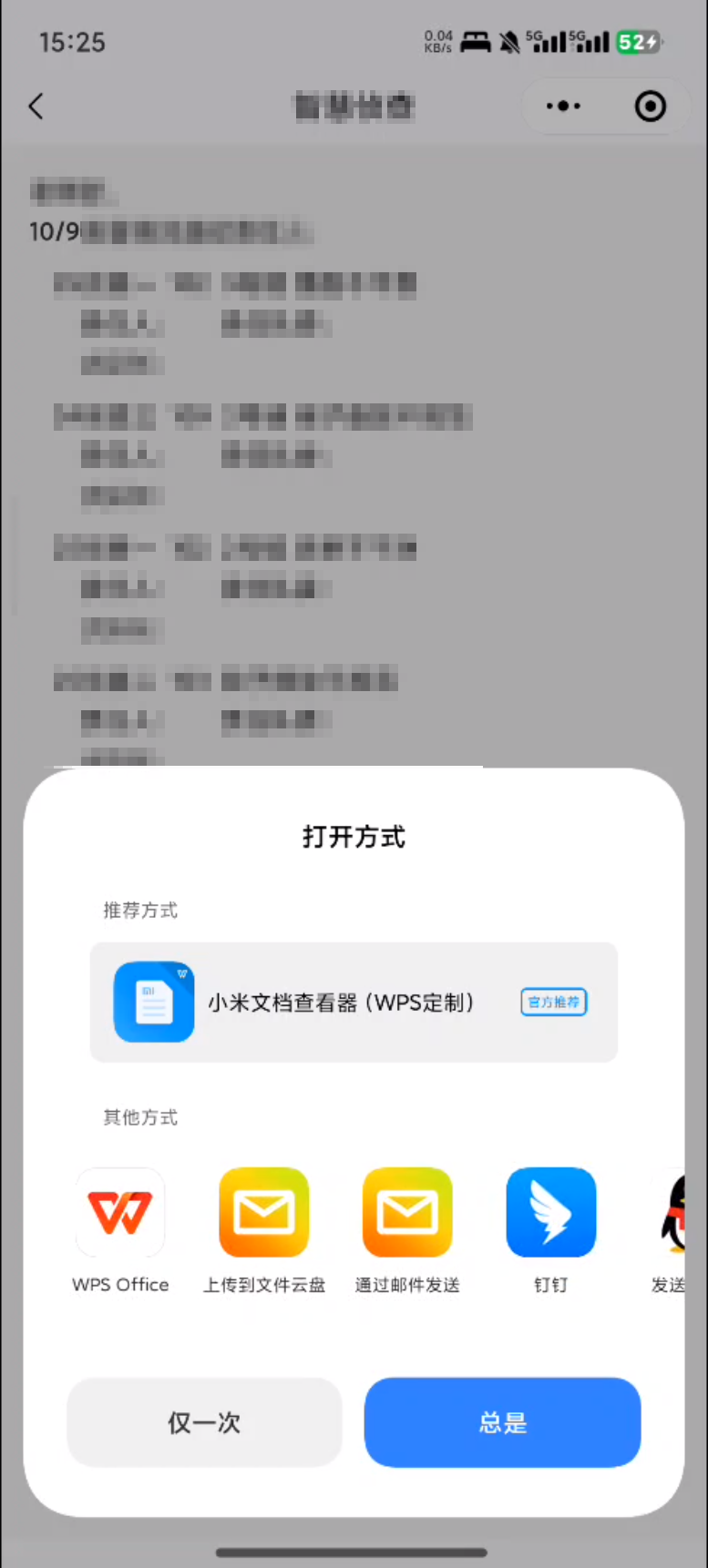
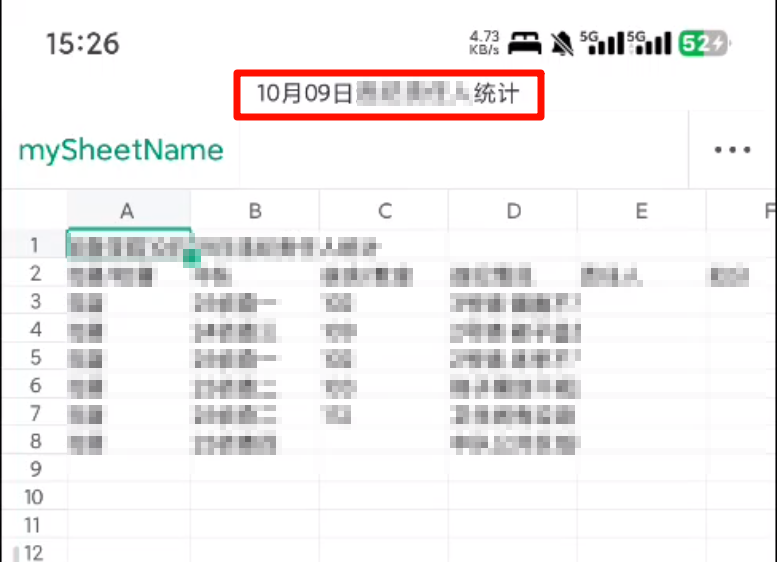
然后,下载成功后就会直接打开这个文件,电脑上会直接打开Excel,手机上则会提示使用指定的程序打开预览,并且文件名也会显示正确
完整代码
1
2
3
4
5
6
7
8
9
10
11
12
13
14
15
16
17
18
19
20
21
22
23
24
25
26
27
28
29
30
31
32
33
34
35
36
37
38
39
40
41
42
43
44
45
46
47
48
49
50
51
52
53
54
55
56
57
58
59
60
61
62
63
64
65
66
67
68
69
70
71
72
73
74
75
76
77
78
79
80
81
82
83
84
85
86
87
88
89
90
| Daochu(){
wx.showLoading({
title: '下载中'
});
wx.cloud.callFunction({
    name: "exportExcel",
    data: {
        startTime:this.data.starttime,
        endTime:this.data.endtime
    }
}).then(res => {
console.log('云函数返回结果:', res);
console.log('文件ID类型:', typeof res.result, '内容:', res.result);
let fileID = res.result.fileID;
wx.cloud.downloadFile({
fileID: fileID,
success: downloadRes => {
console.log('下载成功,临时文件路径:', downloadRes.tempFilePath);
let fileName = 'xxxxxxxx.xlsx';
if (fileID.includes('/')) {
const extracted = fileID.split('/').pop();
if (extracted) {
fileName = decodeURIComponent(extracted);
}
}
const fileManager = wx.getFileSystemManager();
const destPath = `${wx.env.USER_DATA_PATH}/${fileName}`;
fileManager.copyFile({
srcPath: downloadRes.tempFilePath,
destPath: destPath,
success: () => {
console.log('复制文件成功,文件路径:', destPath);
wx.hideLoading();
wx.openDocument({
filePath: destPath,
fileType: 'xlsx',
showMenu: true,
success: function () {
console.log('打开文档成功');
},
fail: function (err) {
console.error('打开文档失败:', err);
wx.showToast({
title: '打开文件失败',
icon: 'none'
});
}
});
},
fail: (err) => {
console.error('保存文件失败:', err);
wx.hideLoading();
wx.showToast({
title: '保存文件失败',
icon: 'none'
});
}
});
},
fail: (err) => {
console.error('下载文件失败:', err);
wx.hideLoading();
wx.showToast({
title: '下载失败',
icon: 'none'
});
}
});
}).catch(err => {
console.error('云函数调用失败:', err);
wx.hideLoading();
wx.showToast({
title: '导出失败',
icon: 'none'
});
});
},
|